Free credits · No subscription · Pay per clip

Gemini Omni 1.2 Flash: Multimodal AI Video Generation

Start free —no subscription, pay per clip. Gemini Omni 1.2 Flash turns prompts and image references into coherent video —consistent characters, scenes, and styles up to 4K.

50 0/2
New creator bonus

Sign in to claim 20 starter credits and begin creating

Gemini Omni 1.2 Flash

Direct the shot you have in mind

Gemini Omni 1.2 Flash turns visual direction into finished clips: write the shot, attach references, and keep every take in one place.

01

Multimodal input

Text plus up to seven image references —characters, scenes, styles, and storyboard guidance in one run.

02

Direction

Camera language lands where you put it —push-ins, orbits, and follows read from plain prompts.

03

Consistency

Faces, products, and palettes stay consistent across shots and whole sequences.

Introduce Gemini Omni 1.2 Flash

A faster brief-to-clip pipeline

Gemini Omni 1.2 Flash is a multimodal video model built for iterative creative work. Give it a clear brief or a set of reference stills —it returns clips you can actually ship.

Gemini Omni 1.2 Flash video generation studio preview
01

Brief-ready prompts

Describe the shot instead of tweaking parameters —subject, action, camera, and light parse from natural language.

02

Reference-guided shots

Attach up to seven stills —the model holds identity, wardrobe, and art direction across the clip.

03

Draft to 4K

Sketch at 720p for fast turnaround, then finish at 1080p or 4K for delivery.

04

Two orientations

Render 16:9 widescreen or 9:16 vertical from the same brief.

05

4–10 second clips

Pick the beat length that fits the shot —short loops or fuller takes.

06

Flash-tier speed

The fast tier of the Gemini Omni line —iterate on direction instead of waiting on the queue.

Gemini Omni 1.2 Flash workflow

Keep what matters. Change what moves the story.

Gemini Omni 1.2 Flash treats every clip as a take you can refine —not a render you have to accept.

Composing a video brief in Gemini Omni 1.2 Flash

Compose

Describe the shot you want

Write the subject, action, camera, and light. Add references when a face, product, or style has to stay recognizable.
Directing a video take in Gemini Omni 1.2 Flash

Direct

Name what each reference does

Pick aspect and resolution. Label each image in the prompt —the character, the setting, the palette —so the model knows its role.
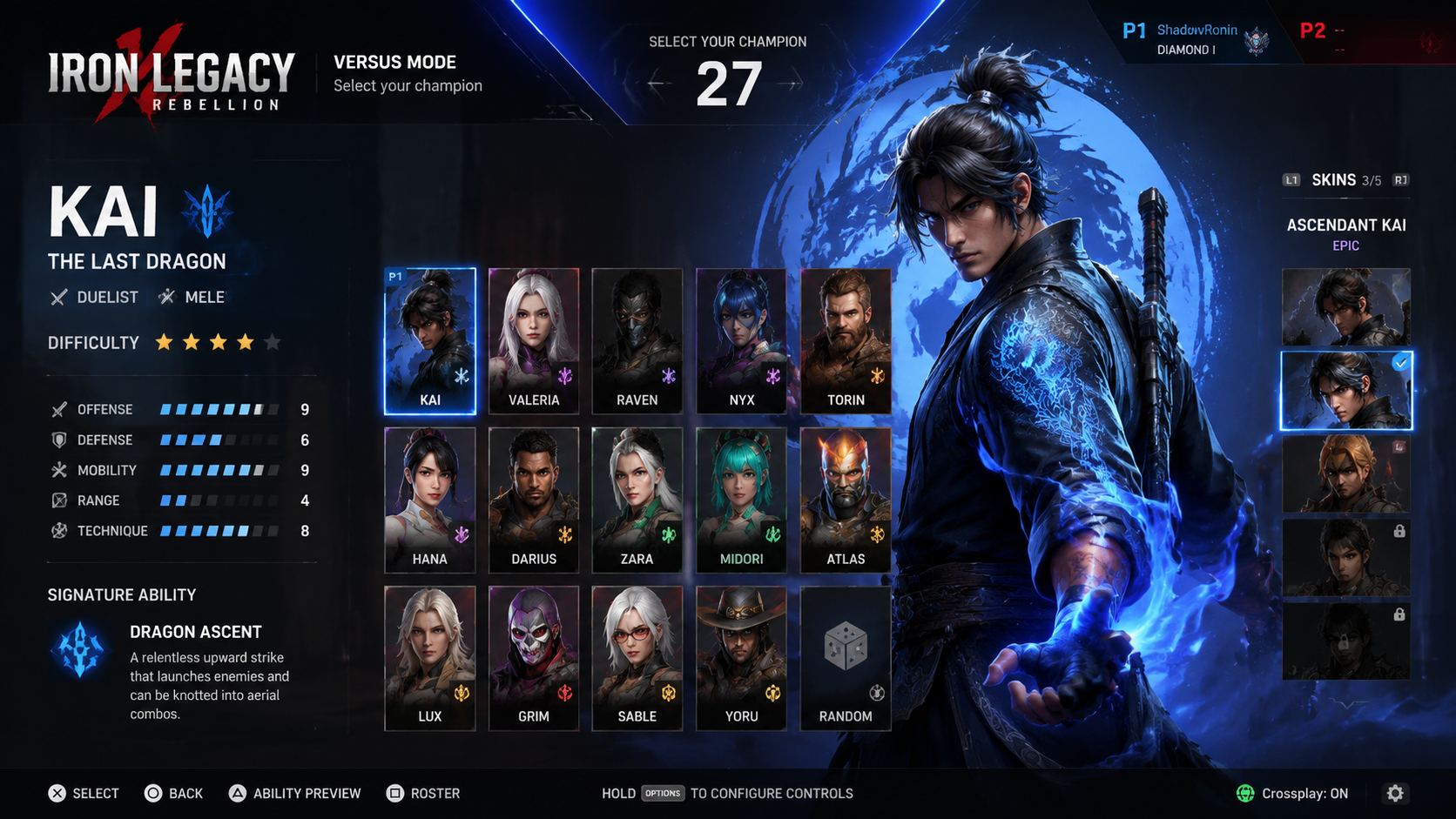
Refining a generated clip in Gemini Omni 1.2 Flash

Refine

Adjust the take

Ask for a different camera move, a tighter framing, or a new scene —Gemini Omni 1.2 Flash revises the shot without resetting it.

Build a clear shot brief

A practical way to start with Gemini Omni 1.2 Flash

Make the important choices explicit, review the take against your brief, and use the best version as the basis for the next one.

01

State the shot

Describe what the clip should show and where it will run. A product reel, a storyboard beat, and a social loop need different framing and pacing.

02

Assign each reference a role

Explain which image defines the character or product and which supplies the setting or style. Label them in the prompt.

03

Choose format and length

Select 16:9 or 9:16, 720p to 4K, and a 4–10 second duration that fits the action.

04

Review, refine, and save

Check motion, identity, and framing across the take. Refine the brief, then download the clip that fits your edit.

From a shot brief to a usable clip

Where Gemini Omni 1.2 Flash can help

Choose a task with a clear visual objective. Gemini Omni 1.2 Flash gives creators, studios, marketers, and product teams more ways to explore it.

01

Product clips in new settings

Explore studio, lifestyle, and seasonal scenes from product references while shape, materials, and labels stay true.

02

Character-consistent shots

Carry a recognizable cast through new angles and camera moves with the same reference set.

03

Campaign and social video

Create coordinated clips for 16:9 placements and 9:16 feeds from one approved direction.

04

Storyboards and previs

Turn boards and reference stills into moving takes that hold the intended look.

05

Concept and mood films

Test lighting, palette, and camera language on short loops before committing to a production.

06

Localized creative variants

Develop regional variations from one brief and adjust on-screen text or scenery per market.

Useful answers before you create

Gemini Omni 1.2 Flash FAQ

Understand the model, prepare better references, and choose a practical approach to your next clip.

01What is Gemini Omni 1.2 Flash?
Gemini Omni 1.2 Flash is a multimodal AI video model. It generates 4–10 second clips from text prompts alone or from prompts plus up to seven reference images, at 720p, 1080p, or 4K.
02How do image references work?
Upload up to seven stills and name each one’s role in the prompt —character, setting, palette. The model treats them as direction rather than a locked first frame.
03How fast is Gemini Omni 1.2 Flash?
It is the speed-focused tier of the Gemini Omni line —most drafts return quickly at 720p. Timing varies with the request and service load.
04How do I write a good video prompt?
Lead with the subject and action, then add camera language —push-in, orbit, handheld follow —and the lighting mood. One camera move per clip stays predictable.
05Which resolutions and ratios are supported?
720p, 1080p, and 4K in 16:9 landscape or 9:16 portrait. The credit estimate updates before each run.
06Can I edit a video I already have?
Use reference stills from your footage to re-shoot a scene with new direction. For literal video-extension workflows, keep an eye on the model page —capabilities grow.
07What about images?
The same studio hosts the GPT Image lineup and Seedream 5 Pro —generate key visuals or first frames, then animate them here.
08Does it generate audio?
Gemini Omni 1.2 Flash focuses on picture. The Seedance video models in the same studio render synchronized audio when a shot needs it.
09What should I check before publishing?
Review faces, hands, product details, and any text in the clip. The model accelerates the creative workflow, but a final review remains part of shipping.
10How do I begin?
Open Create, write a shot brief, and attach references if needed. You can prepare your prompt before signing in —sign in to generate and save your work.

Gemini Omni 1.2 Flash Pricing

Match your plan to how often you create: recurring credits for a regular workflow, or a one-time pack for a defined visual project.

Cancel anytime

For any questions about payment or plans, contact our support team: Contact support

Pay safely and securely with

VisaMastercardAmerican ExpressApple PayUnionPayGoogle PayStripeMore >>

Review billing, shared credits, cancellation, and validity before choosing a Gemini Omni 1.2 Flash plan.

Understand the plan before you pay

Understand the model, prepare better references, and choose a practical approach to your next clip.

01What is the difference between a subscription and a credit pack?
Subscriptions are designed for ongoing creation and include a recurring credit allowance. Credit packs are one-time purchases with no recurring charge, making them a flexible choice for occasional projects.
02How does annual billing work?
Annual plans show their equivalent monthly price for easier comparison, while the full annual amount is charged once per year. Your yearly credit allowance is available for the annual plan period.
03How do credits work across available models?
Credits are shared across the models currently enabled in the workspace. Cost varies by model and generation settings, including image resolution and reference inputs; review the exact credit charge before submitting a task.
04Can I cancel my subscription at any time?
Yes. You can cancel a subscription at any time from your billing settings. Canceling stops future renewals; your current plan remains available until the end of its paid billing period.
05How long are one-time credit pack credits valid?
Credits purchased through a one-time credit pack are valid for 365 days from the purchase date.
06Can I use generated content for commercial projects?
Yes. Paid plans and credit packs support personal and commercial projects, subject to the applicable terms of service and your rights to any uploaded source material.
07How many generations can run at once?
Free accounts can run 1 batch at a time. Valid credit packs and Starter allow 2, Pro allows 4, and Premium allows 8. Waiting and generating batches both count, across image and video models.

Pay safely and securely with

UnionPayStripeMore >>

Make the next shot visible

Start your next clip on Gemini Omni 1.2 Flash

Bring a character still, a product photo, or a clear shot brief. Draft a take, refine the direction, and save the clip that fits your edit.